
The Complete ChatGPT Guide for 2025 (Everything You Need to Know)
By Elliot | ManyFlow AI
ChatGPT is the tool I use every single day running my AI development company. OpenAI keeps adding new models and features constantly, so this is your complete, up-to-date guide on how to get the most out of it in 2025, whether you're running a business or just working on personal projects.
✦
Getting Started: Creating Your Account
First things first, go to chat.openai.com. I highly recommend creating a free account before doing anything else. Using ChatGPT without logging in is very limited, but even a free account gives you significantly more access.
Once you're logged in, you'll see the main chat interface and a prompt to upgrade your plan.
✦
Which Plan Should You Get?
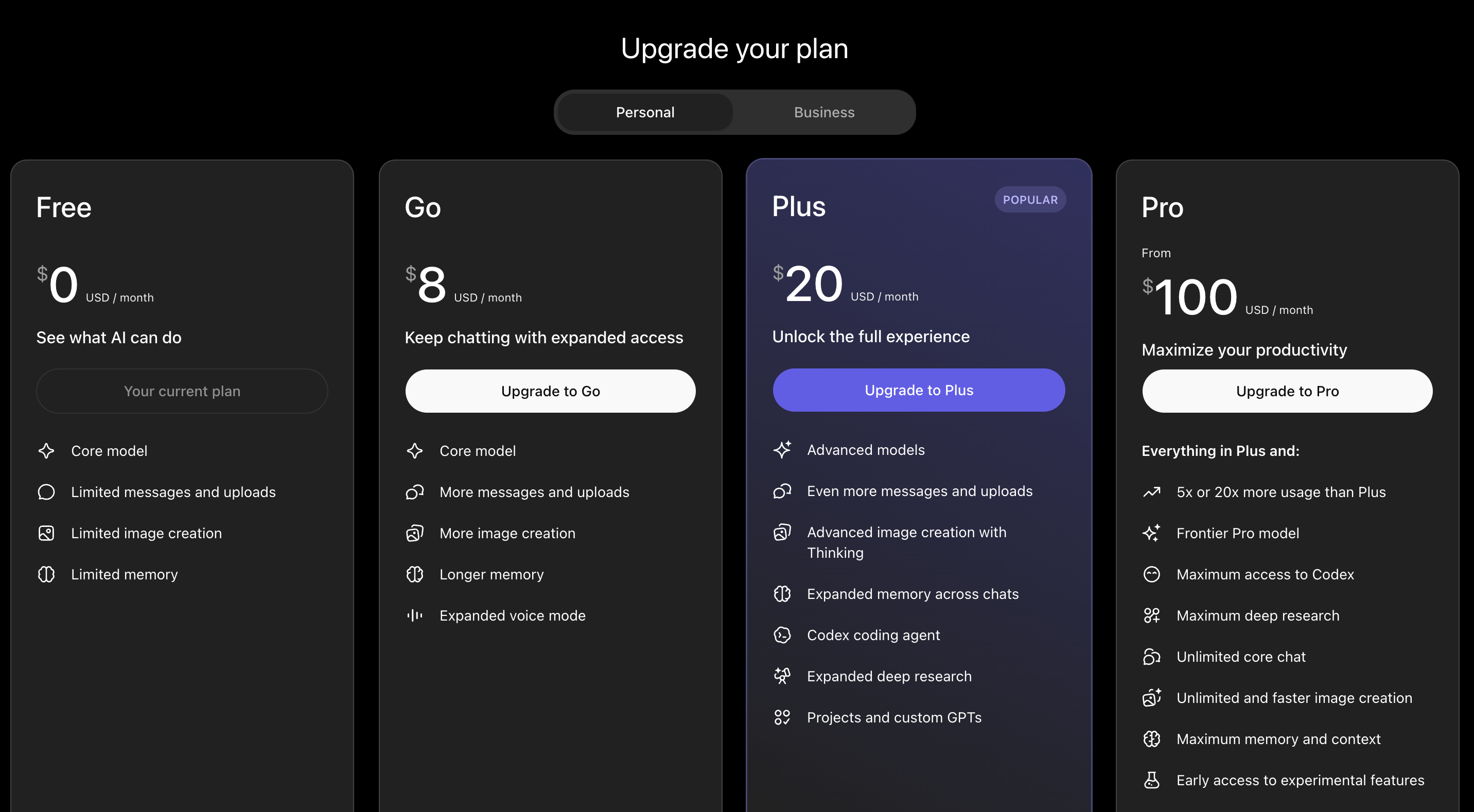
Here's a quick breakdown of all the plans:
Free
You get access to the latest model but almost everything is limited. Limited file uploads, limited messages, limited features. It's a good starting point, but you'll hit the walls quickly.
Plus ($20/month) — Recommended for most people
This is what I recommend for anyone serious about using ChatGPT. You get expanded messaging and uploads, faster image generation, Sora video generation, project tasks, and access to custom GPTs. For the vast majority of use cases, this is everything you need.
Business
If you're running a small to mid-sized team, this is where it makes sense. You can share the workspace with team members and collaborate on projects. I'm actually moving my company over to this plan soon.
Pro ($200/month)
You get GPT-5 with pro reasoning, unlimited messages and uploads, and maximum deep research. Honestly, I don't think it's that much more valuable than Plus for most people. The steep price is hard to justify unless you're using it at an extreme level.
Enterprise
This is for large companies. It has Excel integrations, connects to your company's data, and supports org-wide AI workflows. Most people reading this won't need it.
My recommendation: Start on the free plan, get a feel for it, then switch to Plus when you're ready to use it seriously every day.
✦
Asking Your First Questions
When you start a new chat and ask something like "Why is the sky blue?", ChatGPT gives you a clear, well-structured answer instantly. Each conversation gets saved on the left sidebar so you can always come back to it.
Something useful to know: when you ask about things like current events or "what are the top 3 movies of all time", you'll notice ChatGPT sometimes searches the web in real time. This means it's not just relying on its training data. It pulls fresh information from Google and summarizes it for you, which is super useful for anything time-sensitive.
✦
Image Generation
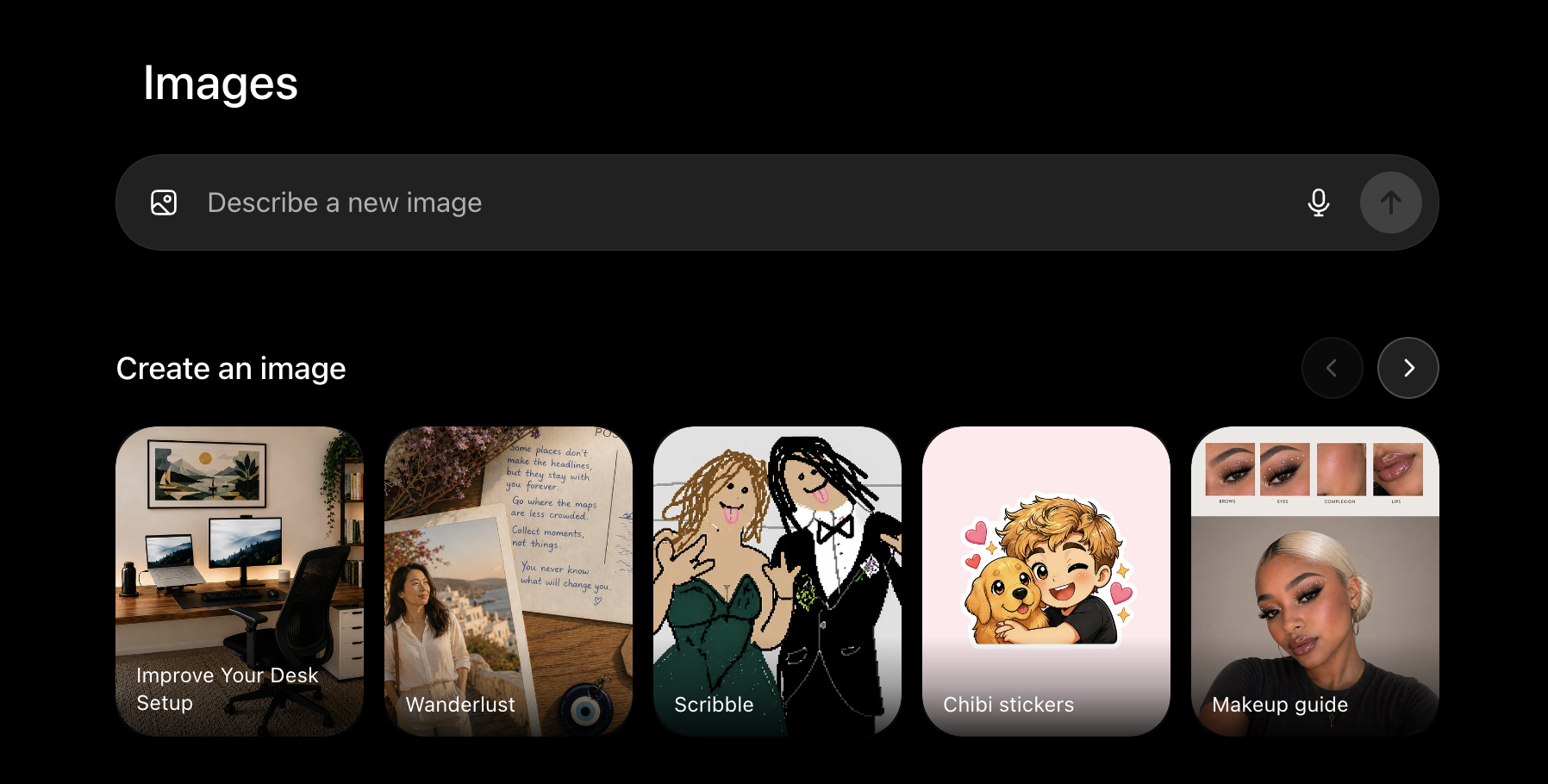
ChatGPT can generate images. Just ask it something like "Generate an image of New York City at night" and it'll produce a realistic result in around 30 to 60 seconds.
You can also edit images after they're generated. Click on the image, select the part you want to change, describe what you want different, and it'll regenerate. It works, though it's not always perfect.
That said, I personally use Gemini for image generation. I think it produces better results. ChatGPT's image generation is decent but I'd only use it for specific or unique requests.
One nice thing is the library feature. Every image you generate across all your chats gets saved in one place. If you're in marketing or using it for design inspiration, this makes it easy to track everything down without digging through old chats.
✦
Projects: Staying Organized
This is one of my most used features at work. You can create a project for each client or each area of your life, and every chat related to that project gets stored inside it.
For example, when I sign a new client, I create a project for them. Everything goes in there: writing proposals, drafting emails, coding parts of their app, strategizing. All in one place, easy to find.
You can categorize projects by investing, homework, writing, health, travel, whatever makes sense for you. It's a simple but powerful organizational tool.
✦
Choosing the Right Model
By default, ChatGPT runs on auto mode, which uses GPT-5 and automatically switches between response modes based on your question. Here's how the modes break down:
- —Instant - For quick, simple questions. Fast response, no overthinking.
- —Thinking - For complex questions. It takes longer but reasons more carefully. I switch to this when I'm asking it to write or debug code.
- —GPT-4o (legacy) - The previous default model. Still good, mostly useful if you're working with the API directly.
For most regular use, just leave it on auto.
✦
Memory: ChatGPT That Actually Knows You
This is probably the feature I get the most value out of. You can tell ChatGPT information about yourself and it saves it across all future chats.
For example, I told it:
"My name is Elliot. I am 25 and I live in San Diego."
Now in any new chat, if I ask "What do you know about me?", it already knows. No re-explaining needed.
On my work account, ChatGPT knows my business, what products I sell, who my clients are, what tools I use. So when I ask something like "How do I get more leads for my business?", it already has full context. It's genuinely like having a business partner who never forgets anything you told them.
You can manage your memory anytime in Settings > Personalization > Manage Memory, where you can view, edit, or delete anything it has stored.
✦
Voice Mode
Yes, you can talk to ChatGPT out loud. There are multiple voices you can choose from, and they respond quickly and naturally. I use this sometimes when my hands are busy or I just don't feel like typing. It runs smooth enough that it doesn't feel gimmicky.
✦
Personalization and Settings
Under settings, you can:
- —Switch between dark and light mode (I always use dark)
- —Set a tone for ChatGPT: critical and sarcastic, efficient and blunt, thoughtful and supportive, exploratory and enthusiastic. I keep mine on default.
- —Write custom instructions so ChatGPT always has context about who you are and what you do
- —Connect apps like Gmail, Google Calendar, Dropbox, and more
- —Get notifications when long tasks like research or image generation are done
✦
Uploading Files and Images
Beyond generating images, ChatGPT can also read images and files you upload. Upload a screenshot of an error message, a document, a contract, homework, anything. It'll analyze it and give you a response based on what it sees.
I use this constantly when debugging code. Instead of typing out a long error description, I just screenshot the issue and send it over. It tells me exactly what's wrong and how to fix it.
✦
Deep Research
Deep research is ChatGPT going all the way in on a topic. It scans the entire internet, pulls from as many sources as possible, and gives you back a very detailed summary. This takes around 10 to 15 minutes to complete, and you only get a limited number per month depending on your plan.
Use it when you need real depth on something, not just a quick answer. Current events, market research, industry deep-dives, that kind of thing.
✦
Agent Mode
Agent mode is like giving ChatGPT a browser and a to-do list. You describe a task and it goes and does it autonomously by opening tabs, navigating websites, and pulling information together.
As a test, I asked it to plan a one-week trip to Spain with the best restaurants, hotels, and activities. I let it run in the background while I kept working on other things. About 10 minutes later it came back with a full itinerary: day by day breakdown, hotel recommendations with links, top attractions in Barcelona and Madrid, everything.
It's a genuinely impressive feature, but you have a limited number of uses per month so save it for tasks that are actually worth it.
✦
Canvas: Coding with a Live Preview
Canvas is specifically useful if you're doing any kind of coding or writing. When ChatGPT generates code, you get a side-by-side view with a live preview of what it built.
I asked it to build a simple HTML lead form for a real estate company. Done in 5 seconds. I clicked preview and saw the form right there. Then I asked it to add more color, it updated the code, and I hit preview again. No copy-pasting into external HTML viewers, no switching tabs constantly.
You can browse through version history, download the file, and keep iterating. This is how a lot of front-end developers are building things with AI right now.
✦
Custom GPTs
Custom GPTs are pre-prompted versions of ChatGPT built for specific tasks. There's a public GPT store where you can explore ones made by other people, covering things like design, school help, coding, and more.
But the real power is building your own. I created a custom GPT trained on the entire documentation for Voiceflow, a platform I use to build AI agents. Now when I ask a Voiceflow-specific question, it searches that documentation and gives me the exact answer instead of a generic response.
If you do one specific thing repeatedly in your business or workflow, a custom GPT is absolutely worth building.
✦
Codex: For Developers
If you're a software developer, Codex is worth knowing about. It's ChatGPT's dedicated software engineering agent. You connect it to your GitHub, plug it into your terminal or VS Code, and it helps you write, debug, and understand code at a deeper level.
My developers use this when building client solutions. If you're not a developer, you probably won't need this, but if you are, it's one of the most powerful tools in the stack right now.
✦
Atlas: ChatGPT in Your Browser
Atlas is a brand new feature that just dropped. It's essentially a ChatGPT assistant built directly into your browser. As you're shopping, researching, or browsing, it's there to help you in real time. I haven't had much time to dig into it yet since it just launched, but it looks interesting.
✦
Wrapping Up
That's everything there is to know about ChatGPT in 2025. Here's the short version:
- —Start free, but get Plus when you're serious about using it
- —Use memory and custom instructions so it actually knows your context
- —Use projects to stay organized across clients and tasks
- —Use deep research and agent mode for the heavy lifting
- —Build a custom GPT for anything you do repeatedly
If you have any questions, drop them in the comments on the video. And if you want to connect with a community of people learning AI, check the link in the description for the free AI school community.
✦
Elliot is the founder of ManyFlow AI, an AI development company helping businesses automate and scale with AI.